ToneLab Chroma Pro | Colour Grading & Camera Conversion Workflow

← Back to Blog Workflows / Colour / Filmmaking
Workflow Colour Grading DaVinci Resolve ToneLab Chroma Pro

Professional Colour Workflow

Creating a Consistent Colour Workflow with ToneLab Chroma Pro

How I'm integrating ToneLab Chroma Pro into my colour-grading workflow for camera conversion, beauty and skin footage, and a more controlled starting point inside DaVinci Resolve.

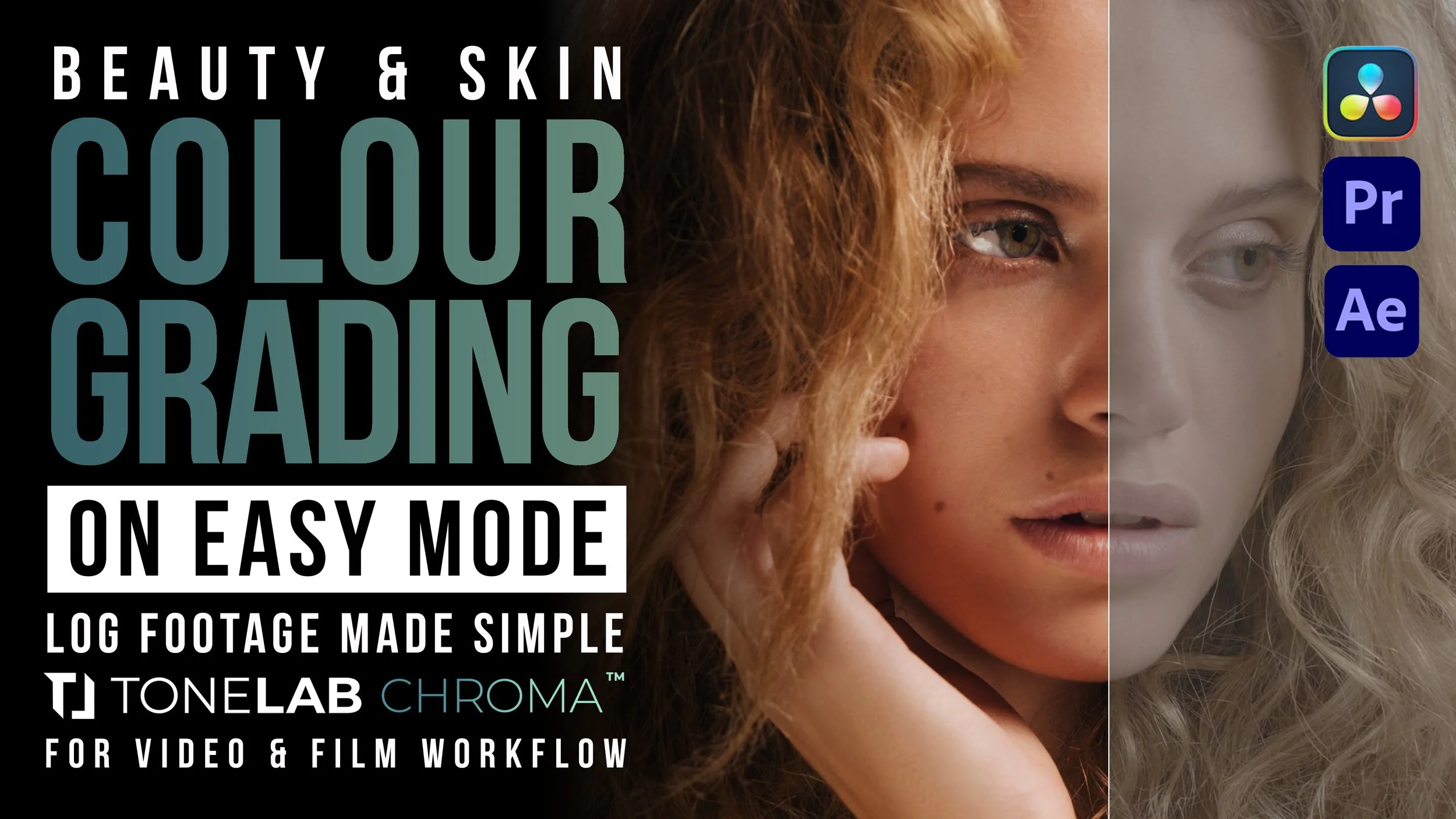
ToneLab Chroma Pro beauty and skin colour grading workflow with DaVinci Resolve, Premiere Pro and After Effects
ToneLab Chroma Pro × Beauty & Skin Colour Grading — Simon Songhurst workflow.

Working with footage from different cameras is one of those colour problems that becomes increasingly obvious once you start putting shots next to each other.

Different cameras, LOG profiles and colour responses can make footage captured under similar conditions feel surprisingly disconnected. That's manageable when you're working with one camera throughout a project, but it becomes much more important when several cameras or recording formats need to live together within the same film.

For commercial work — particularly beauty, skincare and hair — colour consistency matters even more. Skin tone, highlight behaviour and the relationships between colours need to remain controlled from shot to shot.

I've recently started working with ToneLab, and I'm integrating ToneLab Chroma Pro into my post-production workflow to explore a faster and more controlled approach to camera conversion and colour grading.

Rather than looking at Chroma simply as another collection of LUTs, what interests me is where it can sit within the complete workflow: from LOG footage, through camera conversion, into balancing and finally the creative grade.

For me, the important question isn't whether a colour tool can make an image look impressive in one click. It's whether it can give me a reliable starting point from which I can make my own decisions.

Different Cameras. Different Colour.

Modern cameras are capable of producing extraordinary images, but that doesn't mean those images naturally match.

Move between camera manufacturers and recording formats and you're dealing with different LOG curves, gamuts, sensor responses and manufacturer approaches to colour.

Even before you start building a creative look, those differences can affect the way skin, highlights, saturated colours and neutral tones appear.

My preference is to deal with as much of that technical inconsistency as possible before getting deeply into the creative grade.

I want a controlled foundation first.

Then I can make creative decisions intentionally.

What Is ToneLab Chroma Pro?

ToneLab Chroma Pro is a colour-grading plugin designed to bring technical camera conversions and creative colour tools together inside a single workflow.

Chroma Pro currently includes 28 technical Conversion LUTs covering more than 50 cameras, designed to convert supported LOG or RAW footage to Rec.709. It also includes 65 Creative LUTs alongside additional grading and finishing controls.

The plugin works with DaVinci Resolve, Adobe Premiere Pro and Adobe After Effects on supported Windows and Apple Silicon Mac systems.

Camera Conversion 28 technical conversion LUTs for 50+ cameras
Creative Colour 65 creative LUTs for building the final look
Workflow DaVinci Resolve, Premiere Pro & After Effects

The part that initially caught my attention was the camera conversion workflow.

Chroma allows you to select the conversion appropriate to the camera and recording profile you're working with and then continue into the creative part of the grade.

That makes considerably more sense to me than treating every clip as an isolated grading exercise.

Where Chroma Fits Into My Colour Workflow

I don't see Chroma as a replacement for colour grading.

I see it as part of the pipeline.

That's an important distinction because a camera conversion and a creative grade are doing different jobs.

Start With The Camera Footage

Work from the original LOG or supported source footage and identify the camera and recording profile correctly.

Apply The Appropriate Camera Conversion

Use Chroma's conversion workflow to establish the technical starting point appropriate to the footage.

Balance The Image

Exposure, white balance and shot-to-shot consistency still need judgement. A conversion doesn't remove the need to understand the image.

Build The Creative Grade

Once the technical foundation is controlled, I can start making the decisions that actually define the finished image.

Refine & Deliver

Skin, contrast, saturation and finishing decisions can then be refined according to the project rather than being dictated by the original camera response.

Why I'm Testing Chroma With Beauty & Skin Footage

I've spent a large part of my professional career photographing and filming beauty, skincare and hair.

That makes skin one of the areas where I'm particularly cautious about colour.

Small changes in hue, saturation and contrast that might be relatively inconsequential elsewhere in an image can become immediately obvious on a face.

Skin can therefore be a very unforgiving test of a colour workflow.

That's precisely why I'm using some of my own commercial beauty and skincare footage while exploring Chroma Pro.

I'm not evaluating it against a random test clip where I have no relationship with the original material. I'm interested in seeing how the workflow behaves with footage where I understand what I'm looking for from the final image.

With beauty work, I don't want the software deciding what good skin should look like. I want it to give me a controlled foundation so I can make that decision myself.

Camera Conversion Is A Starting Point — Not The Final Look

I don't necessarily want every camera I use to suddenly look identical.

Different cameras have characteristics that can be useful creatively, and completely removing those differences isn't always the objective.

What I do want is control.

By establishing a more predictable starting point, I can make creative decisions intentionally rather than spending the first part of a grade fighting inconsistencies I didn't ask for.

That's particularly useful when footage from several cameras needs to sit within the same film.

The goal isn't necessarily to remove the character of each camera.

It's to make those differences manageable.

Simon Songhurst × ToneLab

Get 20% Off ToneLab Chroma

If you'd like to try ToneLab Chroma for your own colour-grading workflow, feel free to use my discount code SIMONSONGHURST to receive 20% off.

SIMONSONGHURST

ToneLab has provided me with lifetime access to Chroma Pro as part of our partnership. The discount code above is available to readers who would like to purchase ToneLab Chroma.

ToneLab Chroma Pro With Real Beauty Footage

I'm also producing a complete video showing how I use ToneLab Chroma Pro with real beauty and skincare footage. You'll be able to see where the camera conversion sits within the workflow and how I continue from that technical starting point into the grade.

Video Coming Soon ToneLab Chroma Pro × Beauty & Skin Colour Grading Workflow

Building A More Repeatable Post-Production Workflow

The larger reason I'm interested in tools such as Chroma Pro is repeatability.

As my filmmaking and post-production workflow continues to develop, I'm increasingly interested in systems that remove unnecessary friction without removing creative control.

That's also one of the central ideas behind the Workflow section of SimonSonghurst.co.

I'm not interested in collecting software simply because another tool exists.

I'm interested in building a set of tools and methods that solve specific problems.

For colour, that means creating a reliable path from:

Camera footage → technical conversion → balanced image → creative grade → final delivery.

ToneLab Chroma Pro is now something I'm exploring within that chain, and I'll continue documenting the workflow as I use it across more cameras, footage and real projects.

Photography, Filmmaking, Colour & Post Production

If you've found this useful, there are more practical photography, filmmaking, editing, colour and post-production workflows throughout SimonSonghurst.co and on my main YouTube channel.

ToneLab Chroma Pro Questions

What is ToneLab Chroma Pro?

ToneLab Chroma Pro is a colour-grading plugin that combines camera conversion LUTs, creative looks and additional colour controls within a single workflow for supported editing and grading applications.

Does ToneLab Chroma Pro work with DaVinci Resolve?

Yes. ToneLab Chroma Pro supports DaVinci Resolve on compatible Windows and Apple Silicon Mac systems. It also supports Adobe Premiere Pro and After Effects.

Can ToneLab Chroma convert LOG footage?

Chroma Pro includes technical conversion LUTs for supported cameras and recording profiles, allowing compatible LOG or RAW footage to be converted to Rec.709 as part of the colour workflow.

How many cameras does ToneLab Chroma Pro support?

ToneLab currently states that Chroma Pro includes 28 conversion LUTs supporting more than 50 cameras. Always check ToneLab's current compatibility list for your specific camera and recording profile before purchasing.

Does ToneLab Chroma replace colour grading?

That's not how I'm approaching it. I use the conversion stage as a technical foundation before continuing with balancing, shot matching and the creative decisions appropriate to the project.

Is there a ToneLab Chroma discount code?

Yes. You can use my code SIMONSONGHURST for 20% off ToneLab Chroma.

Why are you testing Chroma with beauty footage?

My professional background includes more than 25 years working across photography and filmmaking, including beauty, skincare and hair. Skin is particularly revealing when assessing colour, which makes this footage useful for evaluating how a colour workflow behaves in practice.

Partnership disclosure: ToneLab has provided me with lifetime access to Chroma Pro as part of our partnership. I only integrate products into my workflow content where they are relevant to the subject being discussed. Any observations or opinions published here are my own.

Want To Try It In Your Own Workflow?

Explore ToneLab Chroma and, if you decide it's right for your own colour-grading workflow, use my code SIMONSONGHURST for 20% off.

SIMONSONGHURST
Next
Next

Why I Keep Returning to the RX100 VII